You can scan a QR code displayed on your own Android phone by saving the image or taking a screenshot, then opening it in JB Tool - QR Code Scanner.
Pick the saved image
- Save the QR image or take a screenshot that includes the whole code and its surrounding white margin.
- Open JB Tool - QR Code Scanner and go to Scan.
- Choose the image scan option and select the saved image in Android’s photo picker.
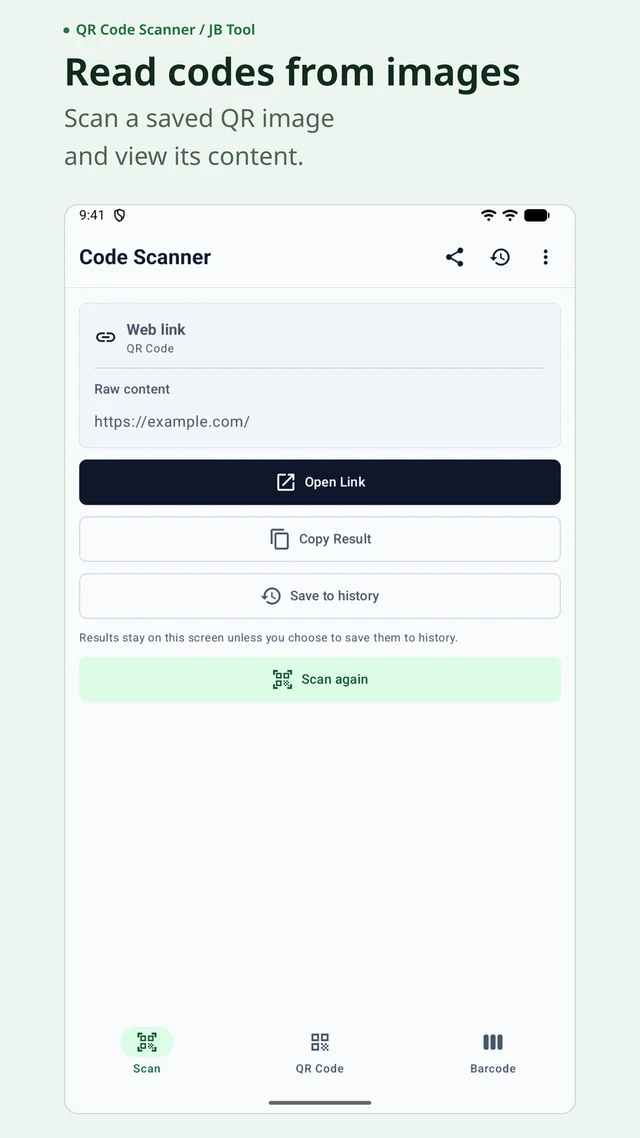
- Read what the app found. If it found a web link, review the displayed address before tapping Open Link.
Check the decoded result
The example screen shows Web link and displays https://example.com/ under Raw content. Use Copy Result if you only need the text. Choose Save to history if you want to keep it in the app.
If the image does not scan
Try the original image at a higher resolution if you have it. For a screenshot, trim away distracting content while leaving the whole QR code and a clear margin. If you downloaded the picture from a message or webpage, try saving the original attachment and selecting it again.
Need more help with this app?
Find app support →