Use JB Tool - Excel to CSV to convert multiple files or folders on Windows. The app exports one CSV per selected sheet, processes files on your PC, and works without Microsoft Excel installed. It accepts .xlsx, .xlsm, .xlsb, and .xls.
Select files and sheets
- Open the app and choose Add files or Add folder. You can also drag files onto the window.
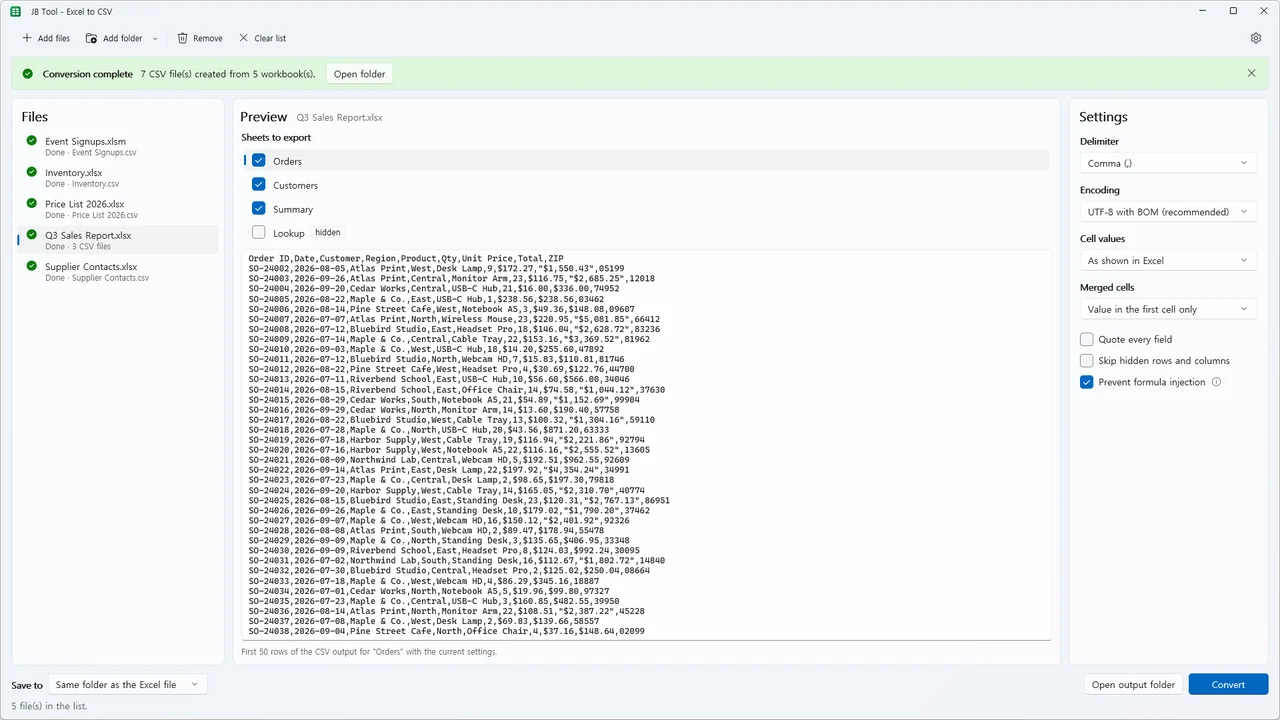
- Select a workbook in the file list. Under Sheets to export, tick the sheets you need. Hidden sheets start unchecked.
- For a comma-delimited CSV that you plan to open in Excel, choose Comma and UTF-8 with BOM. Set Cell values to As shown in Excel to use the displayed formatting.
- Review the preview, choose an output folder under Save to, then select Convert. Use Open output folder to find the files.
The Store screenshot shows a completed batch with 7 CSV files from 5 workbooks. The selected workbook has three sheets checked and its hidden Lookup sheet unchecked.
Try a two-sheet example
Create an Inventory.xlsx workbook with the sheets Products and Stock. Optionally hide a third sheet called Notes to verify the selection. Enter the following data, with the labels in the first row. In both sheets, enter 123 as a number and give that cell the custom number format 00000. Enter 1200 as a number in Price and use the custom format #,##0. The sample uses a comma as the thousands separator.
| Worksheet and example cells | Expected output file |
|---|---|
| Products Code 123, Name 연필, Price 1200 |
Inventory_ |
| Stock Code 123, Quantity 8 |
Inventory_ |
With a comma delimiter and As shown in Excel, you should see the following text in Inventory_Products.csv.
Code,Name,Price
00123,연필,"1,200"
The price is quoted because it contains the delimiter. Inventory_Stock.csv contains the header Code,Quantity and the row 00123,8. A hidden Notes sheet stays out unless you select it. If a workbook contains only one sheet, the app uses the workbook’s name, such as Suppliers.csv for Suppliers.xlsx.
Keep Korean text and leading zeros when reopening CSV
- Korean text looks garbled. Export using UTF-8 with BOM for Excel. If the file is already UTF-8 and opens incorrectly, import it through Data → From Text/CSV and select UTF-8 in the import settings. Microsoft’s UTF-8 instructions
- The code shows as 123 in Excel. Open the CSV in a text editor and check whether
00123is present. If it is, set the column type to Text when importing the CSV into Excel so Excel preserves the digits. Microsoft’s CSV import instructions
Need more help with this app?
Find app support →