A page is loading slowly, or a device on your network seems unreachable. A short Ping test gives you a starting point: whether that target replies, and how long replies take from your current connection.
Use JB Tool - Ping for the steps below.
Start with one target
- Connect your Android device to the network you want to check.
- Open Ping and enter a hostname or IP address in Target Host. Use your router’s actual gateway address for a local test, rather than guessing a common router address.
- Start with a small, fixed request count, such as 5. Leave continuous mode off for this first check.
- Press Start and let the test finish. Keep the target and network the same when comparing results.
The app accepts hostnames and IPv4 or IPv6 addresses. Advanced settings let you choose an address family, interval and timeout. If Android requests local-network access for a private target, allow it only if you intend to test that local device.
Read the result
Response time
Latency is the round-trip time shown for a reply. The average summarizes this test; minimum and maximum help you see how much it varied. Jitter describes variation between response times.
Compare repeated tests to the same target under similar conditions. There is no single response-time threshold that describes every Wi-Fi, mobile and remote-network connection.
Packet loss
Compare sent and received counts. A missing reply contributes to packet loss for this test. With only a few requests, one missing reply changes the percentage substantially; repeat the test before drawing a broad conclusion.
A timed-out reply is not proof that the internet is down. A target or firewall may ignore echo requests, or a reply may arrive after the timeout. Ping checks ICMP reachability rather than a website’s application behavior. Microsoft’s Ping reference explains echo requests and round-trip responses.
Read a sample result
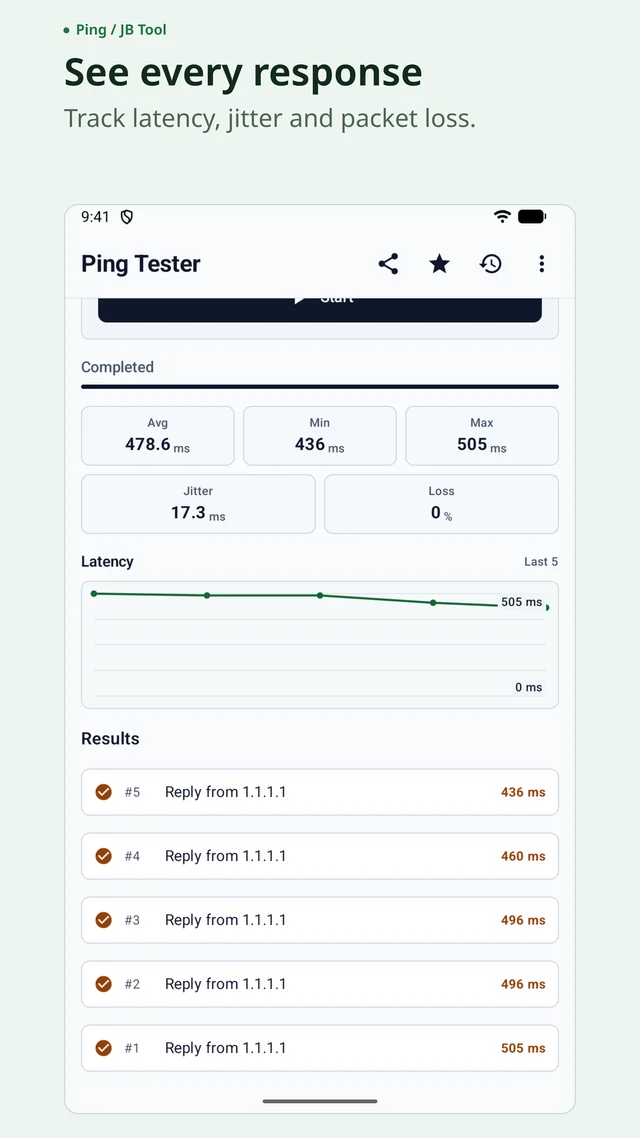
This store screenshot shows five replies and 0% packet loss, with an average of 478.6 ms. All five requests got a response, and each response took hundreds of milliseconds in this run. To investigate slowness, repeat the test against the same target under comparable conditions and check whether the higher times persist.
Decide what to check next
- A local device does not reply: confirm its actual address, power state, your connected network and the app’s permission for local access. Guest Wi-Fi may separate devices.
- An IP responds but a hostname does not: check that the hostname is correct. Name resolution may be involved; the two tests alone do not identify the exact cause.
- Ping responds but a service still fails: check the service’s TCP port with Port Tester. An echo reply does not confirm that a web or remote-access service is running.
Keep a useful comparison
Completed and stopped tests remain in the app’s local History. Restore a target to repeat a test, or share completed results when asking for help. Record whether you used Wi-Fi, mobile data or a VPN so that the comparison has context.
Remove private hostnames and addresses from results before sharing them publicly.
Need more help with this app?
Find app support →