A device can reply to Ping while the service you need remains unavailable. A TCP port test asks a different question: can your Android device establish a connection to this host and port?
Use JB Tool - Port Tester. Test systems you own or have permission to check.
Choose the host and service
Before starting, find the host’s actual address and the port configured for the service. A default port is only a starting point; an administrator may have changed it.
For example, HTTPS commonly uses port 443. That does not mean every service on 443 is a correctly configured website. A TCP connection and the application exchange that follows it are separate steps; see the TCP specification’s connection establishment section.
Run a focused test
- Open Port Tester and enter the address in Target Host.
- Enter the known service port in Ports. Begin with a single port to keep the result easy to interpret.
- Press Check Ports and wait for the result.
- Confirm that you tested from the intended Wi-Fi, mobile or VPN connection. The result describes the path from that connection, not from every network.
You can also enter a comma-separated list or a port range. The app accepts up to 100 ports per test and offers common-port shortcuts. It checks TCP, so a result does not establish whether a UDP service is available.
Interpret the connection result
Open
A connection attempt succeeded at that time. This is useful evidence of TCP reachability, but it does not validate login credentials, a TLS certificate, the service’s identity or application responses.
Closed or refused
Check that the service is running and listening on the intended port and network interface. A rejecting firewall can also affect the result. The label alone cannot tell you which setting to change.
Timed out, filtered or unreachable
Check the address, network route and relevant firewall rules. A timeout can have several causes, so do not assume a specific firewall is responsible. Compare with a test from another authorized device on the same network if available.
Avoid changing a router or firewall merely to make a test show an open port. First confirm which service should be reachable and from which network.
Read a sample result
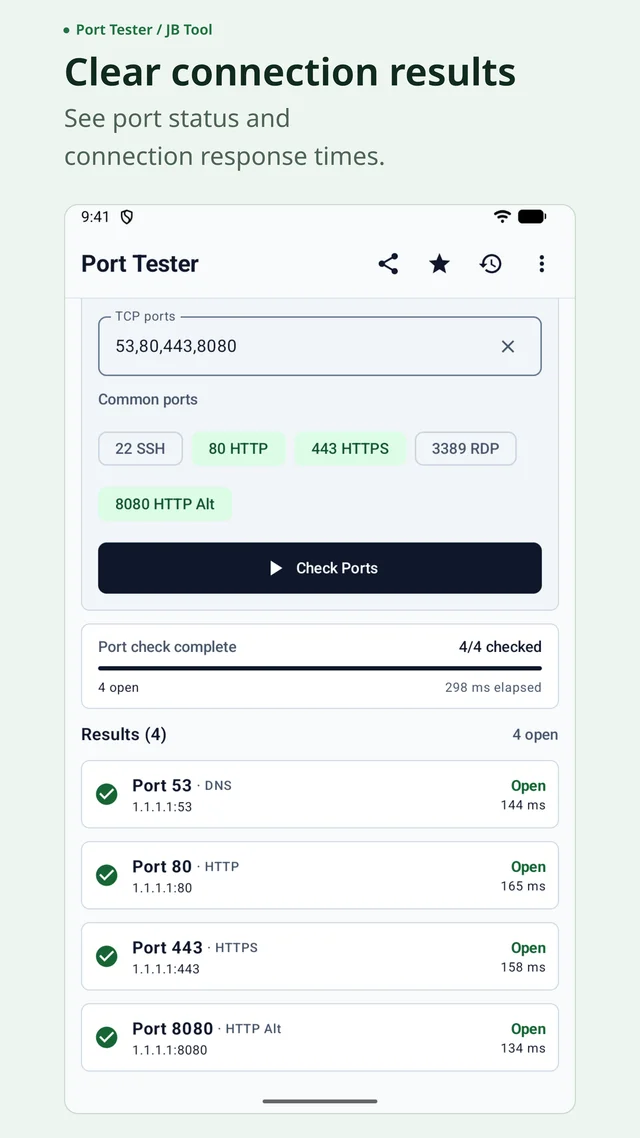
The store screenshot shows 4 of 4 TCP ports checked. Port 443 shows Open with a connection time of 158 ms. If a browser still cannot open the service, the next step is to check the HTTPS response in the browser, including any certificate or application error.
Compare and share results
If the host itself seems unreachable, use the Ping troubleshooting guide for a basic comparison. A failed Ping still does not rule out a working TCP service because the target may handle the two protocols differently.
Port Tester keeps completed and stopped tests in local History. Restore the target to repeat a check, or share a completed result when asking for help. Include the connection type and time of the test, and remove private addresses before posting results publicly.
Need more help with this app?
Find app support →